Interclub Guide for Players
View Teams and Draws
- Log into MySquash.
- Click on Competitions in the menu, then select the MySquash Competitions tile.
- You’ll start on the Individual Competitions page (for tournament entries).
- To view team competitions, click Team Competitions inthe menu, then select Draws and Results.
- This will show a list of interclub competitions for your district.
To view details:
- Click Draw to see the draws.
- Click Teams to view team lists and captain contact details.
- Click Ladder to see the competition points ladder.
Entering Results
- In the menu, click Team Competitions > Score and Record.
- Select the competition tile for your team.
- You’ll see a list of scheduled matches.
- Find the fixture you’ve completed and click Match Results.
- To enter results for the #1 players, click the top row and then Edit.
Entering match details:
- Select the correct players from the dropdown lists. If have a player who is not listed in the team, click on 'Add'. Start typing in the name of the player and click on their name from the dropdown list when it appears. Then click 'Add Temporary Player'. You can then find the player in the Player list.
- Match Date and Time will default to the scheduled fixture.
- Enter the scores for each match. The status will automatically change to "Played".
Special match statuses:
- A/B Defaulted: If a match is defaulted, enter scores as all 11/0 or 15/0. See the default guidelines for details.
- Not Played: Use if the match was a double-default; leave scores blank.
- Fair Play: For mutually agreed Fair Play matches (see section 4).
Once all matches are recorded, team points totals will display at the bottom, and results are sent for grading.
Live Scoring
- Go to Team Competitions > Score and Record and select your competition.
- Find the fixture you’re about to play.
- Set your team lineup for the night by clicking Match Results and then 'Edit' for each match where the players need to be changed based on who is playing that night.
- Once the team lineups are correct, click on the back arrow to return to the results page.
Accessing live scoring:
- Click 'Open Scoring URL in New Tab' to open the match list.
- You can also click 'Copy Scoring URL' and paste this into a new browswer tab.
- Or, click Display Scoring QR Code and scan with a device.
- On the live scoring match list page, select the fixture and match to begin scoring.
- When the match is complete, select the correct status to save and finish.
Note: Club and District admins can override results if corrections are needed.
Using Live Scoring
- Click on either player to have the warmup timer appear.
- Click on the colour palette icon to change the colour for each player to match their clothing so you and spectators can identify who is who.
- Once players have spun a racquet, tap on the player’s name to select who is serving. This will be indicated by the circle icon with the S next to their name.
- Tap the circle underneath the Undo button to change the side the player is serving from (either L for left or R for right).
- Tap the large number when a player scores a point.
- Tap Undo to undo the last recorded action.
- If a let is requested, you can record this by tapping on the Let button of the player and selecting the outcome of the request.
- After each game is completed, the game score will appear at the top and the main score box will show games won by each player.
- Once the match is completed, select the correct match status which is normally ‘Played’ unless the match was played under Fairplay conditions in which case select ‘Fair Play’.
‘Fair Play’ Matches
A new option allows players to exclude a competition match from SquashLevels calculations if:
- The higher-level player is at least twice the level of the lower-level player (e.g., 100 vs 200+, 500 vs 1000+, 2500 vs 5000+).
- Both players mutually agree to a ‘Fair Play’ match before starting.
- Team captains or tournament controllers must be advised immediately after the match for correct submission.
- When entering the score, select Fair Play from the match status dropdown.
- Games won still count for team points and are recorded in player history, but no Level changes occur.
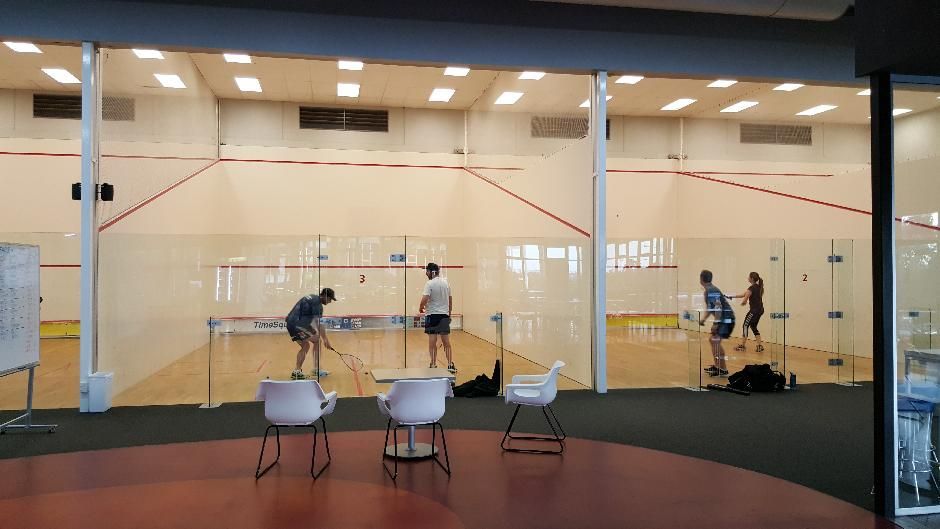
This page contains a summary of the various policies relating to the correct use of the MySquash platform for clubs. These are also available in full on the Policies page of the Squash NZ website.

MySquash Competitions can now be used to run Racketball (Squash57) competitions or record casual Racketball match results. Individual Competitions, Team Competitions, Box Leagues and Ladders now have a ' Sport ' setting, allowing users to select 'Racketball'. Matches with this setting will automatically be excluded from SquashLevels. Development is currently underway to send these matches to the new Squash57Levels system, which will give Racketball players a local, national and international ranking . Any matches recorded prior to the feed going live will be retrospectively processed. As with SquashLevels, the more matches that are recorded, the more accurate the Levels for all Racketball players will be. All other steps to set up a Racketball competition are the same as for Squash, and can be found on the following pages, Individual Competitions for Club Admins Team Competitions for Club Admins Creating and Managing a Box League Creating and Managing a Ladder One-off Racketball matches can be recorded in the Casual Results page. These will also feed through to Squash57Levels.

This guide explains how club administrators can add interclub teams in MySquash. Before You Start You must have Club Admin access to manage teams. If you cannot see the Team Competitions menu, you likely do not have the required access. Please contact your District Administrator to request Club Admin permissions. Step 1: Access the Competition Log in to MySquash . Go to Team Competitions . Click on the competition you want to add teams to. Select the Teams tab. Step 2: Add a Team Click Add Team . Select the Division Type (usually Men’s, Women’s, or Masters). Select your Club (only your club should be available). Leave Division No. blank. Enter the Team Name . Click Save . Step 3: Add Players to the Team Click Add Player . Start typing the player’s name. When the player appears in the list, click their name to select them. Set the player type to Regular . Click Save Player . Repeat these steps until all players have been added. Step 4: Assign the Team Captain Use the Team Captain dropdown to select the captain from the added players. Click Save to finish.
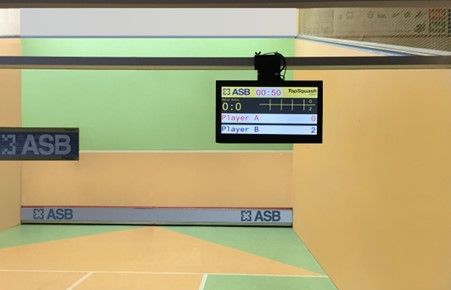
There are no changes to the scoring rules and recommendations for 2026. Districts will set the scoring rules for local interclub competitions, while clubs set the scoring rules for their competitions and tournaments. The rules for national events and recommendations for all other events are as follows; Scoring All junior events will be played using PAR (point a rally) 11. Where a junior competes in a senior event the below ruling based on grading will take effect. We recommend using PAR (point a rally) to 11 scoring for higher graded players (roughly B1 and above), and to 15 for players graded roughly B2 and below. At national events, PAR to 11 scoring is used for; B Grade Superchamps, B Grade National Graded Champs, Cousins Shield / Mitchell Cup, NZ Masters Age Group Championships, NZ Masters Club Team Championships (top division only), All junior age group events, and the top divisions of open events. PAR to 15 scoring is used in grades C-F / J in Superchamps and the National Graded Champs, all divisions except Div 1 of the NZ Masters Club Team Championships, and where appropriate (using the guidelines above) for lower divisions of open events. The scoring system used should be the same for every player in a tournament grade / division.

The MySquash Tournament Dashboard provides a real-time visual display of Upcoming Matches , Active Matches , and Completed Matches - eliminating the need for manual whiteboards or spreadsheets. To use it, you will need a PC connected to an external screen such as a TV or projector. Prerequisites To display matches on the dashboard, all matches must be scheduled using the Calendar function within MySquash.

This guide explains how to use the Grading List filters in MySquash to generate age‑group reports, export data, and organise the information for easy sorting and analysis. Please note that only district administrators and statisticians will be able to export the grading list.
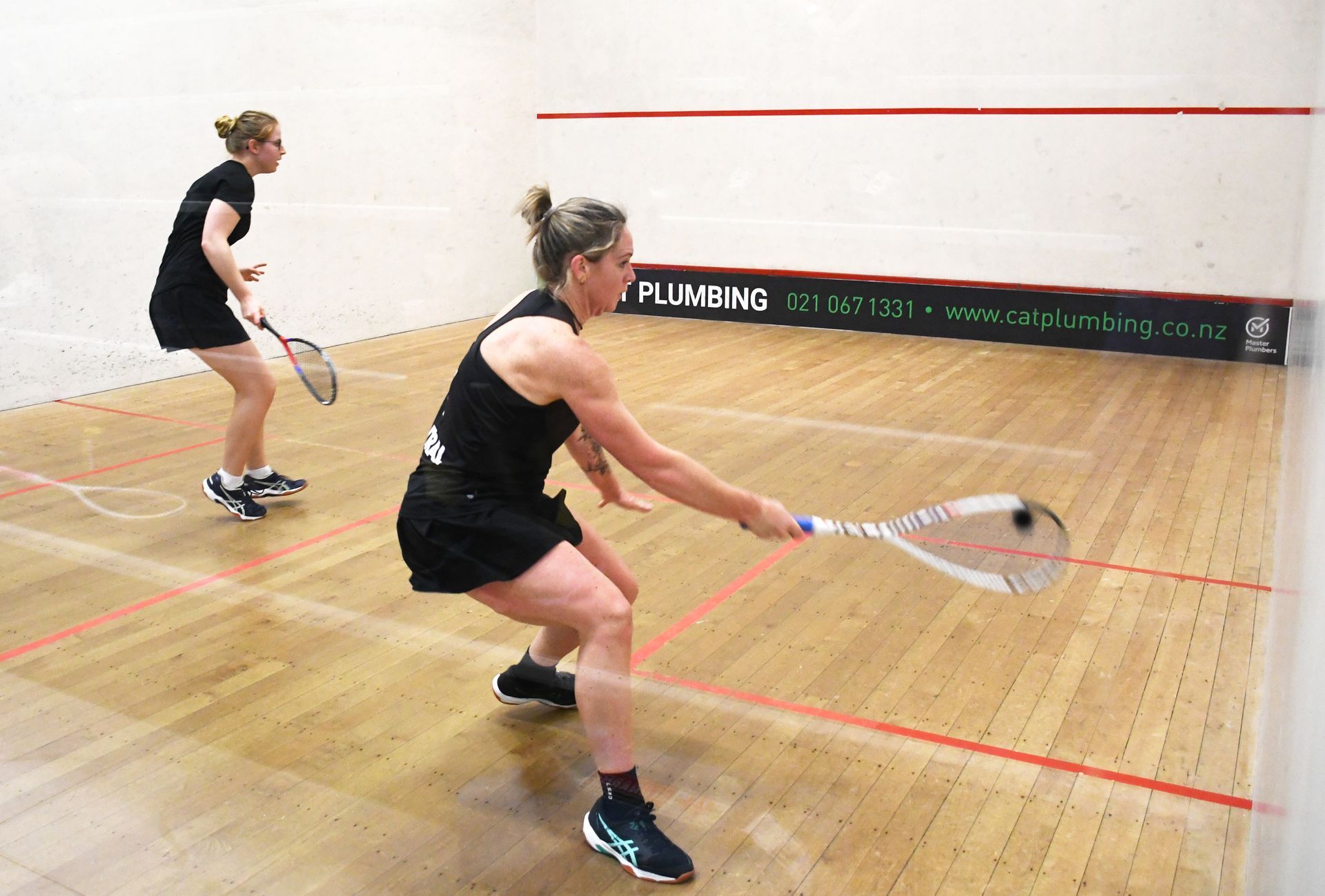
This guide explains how players can access their Box League, arrange matches with opponents, and enter their match results. It also covers how non‑players can view current and previous rounds.

Use Team Competitions to run internal team events (club pennants, business house leagues, intraclub team formats). Event organisers set the event’s rules . The module lets you: create and manage events; seed and export team lists; create or import draws; view ladders/results; apply live scoring; enter/edit results; send to the grading list; and auto‑update ladders.